
How to Set Up an AI Calling Assistant for Clinics to Handle Overflow Calls
A step-by-step guide for medical offices to route overflow and after-hours calls to an AI calling assistant.
Introduction
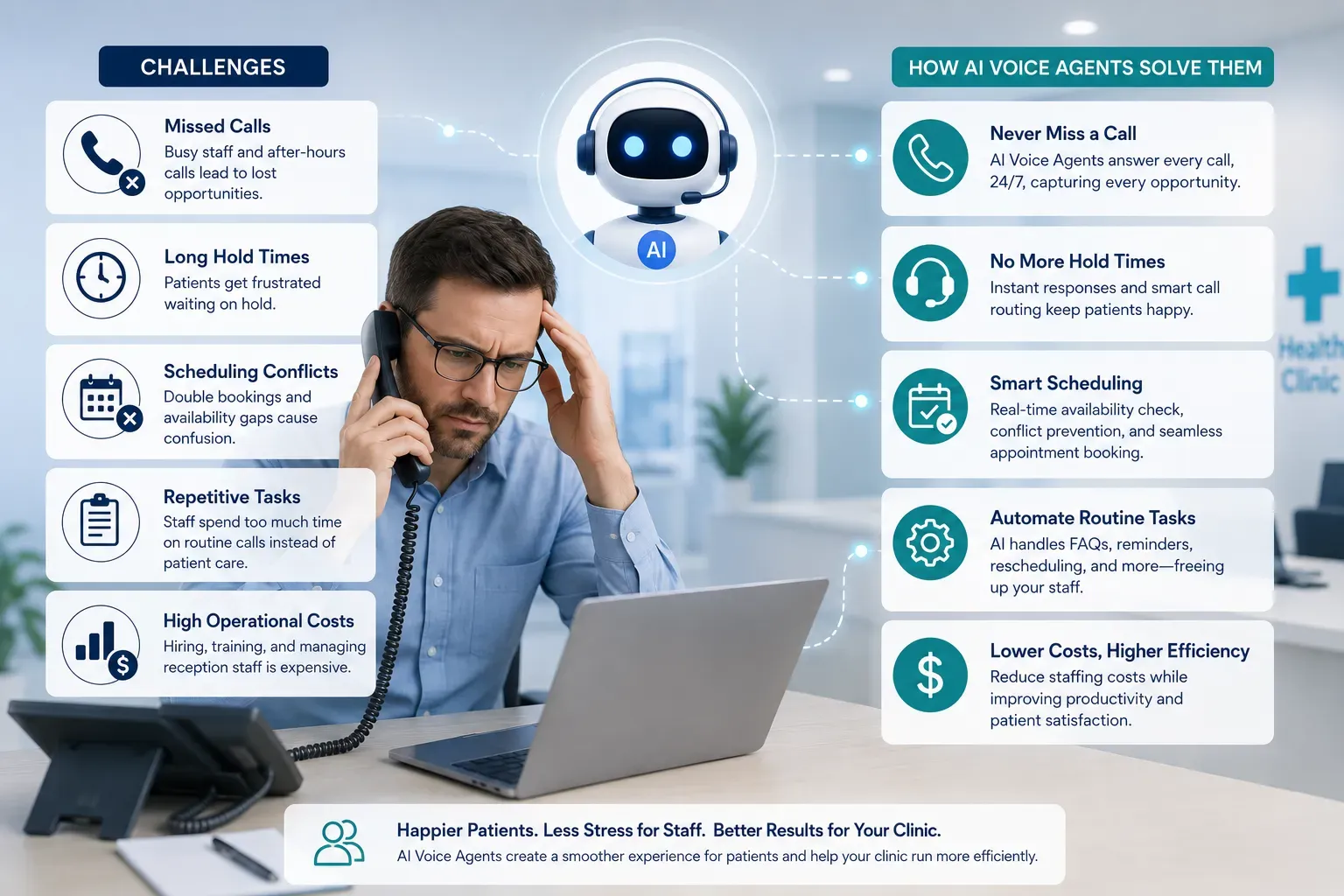
In a busy clinic, the front desk is often the busiest place. Staff must manage checking in patients, taking payments, and preparing rooms while the phone rings continuously. When call volume spikes, important patient calls inevitably go unanswered.
Missing a call is more than an inconvenience—it can mean a missed booking or an unaddressed patient concern. An AI calling agent for clinics can act as a reliable backup, stepping in during busy periods or after hours to ensure every caller receives a response.
Here is a practical guide on how to set up an AI calling assistant to manage overflow traffic without changing your clinic's existing phone number.
Key takeaways
- Use conditional call forwarding to route calls to the AI only when your front desk lines are busy or unanswered.
- Provide the calling assistant with clear FAQs on operating hours, parking, fees, and services.
- Ensure the assistant transcribes and summarizes calls so your team can follow up quickly.
1. Configure conditional call forwarding
You do not need to replace your clinic's phone number to use an AI assistant. Instead, use a setting called 'conditional call forwarding' (sometimes called 'forward on busy' or 'forward on no answer').
When configured, your front-desk phones will ring normally. If your team is on another call or does not answer within 15 seconds, the phone system automatically routes the call to a dedicated Clinic24 number. This keeps the experience seamless for patients.
2. Load common clinic FAQs
An AI calling assistant is only as useful as the information it knows. Before going live, enter your clinic’s basic details, including address, parking instructions, pricing, accepted health funds, and cancellation policies.
Having this data ready allows the assistant to resolve routine questions immediately. Over 50% of incoming clinic calls are simple inquiries that the AI can handle entirely, freeing your front desk for in-person patients.
3. Review automated call summaries
When the AI assistant completes a call, it logs a full transcription and generates a brief summary. Your team can receive these summaries via email or check them inside the dashboard.
If a patient called with a complex request or needed a human callback, your staff can read the summary in seconds and return the call with full context, avoiding the need for the patient to repeat their explanation.
Recommended next step
Visit Clinic24
See how Clinic24 handles patient calls, appointment booking, and clinic front-desk workflows.